~ Pixel Tools ~
Image to Pixel Art Converter
Upload an image and pixelate it in seconds — this free image-to-pixel-art generator turns photos into pixel art with custom pixel sizes, color limits, retro palettes, dithering and transparent backgrounds, then downloads a crisp PNG. No signup, instant results.
Pixel Art Examples
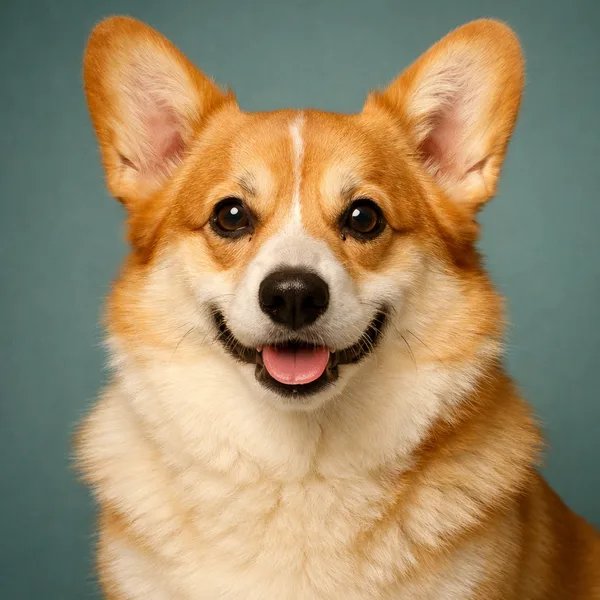
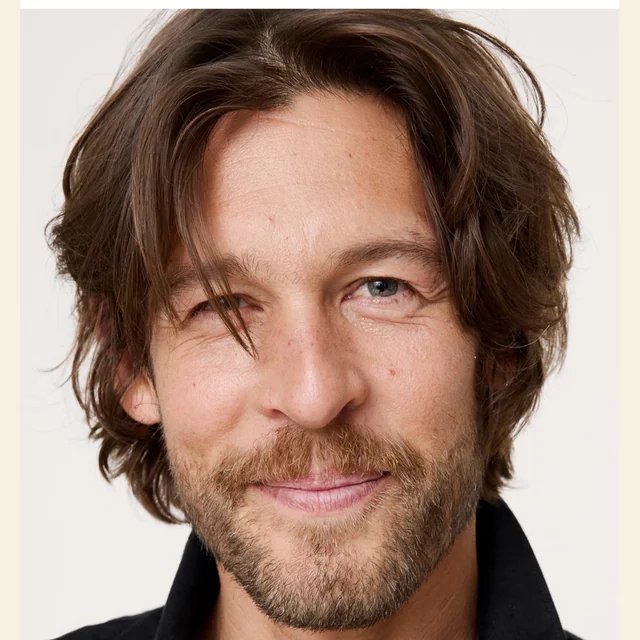
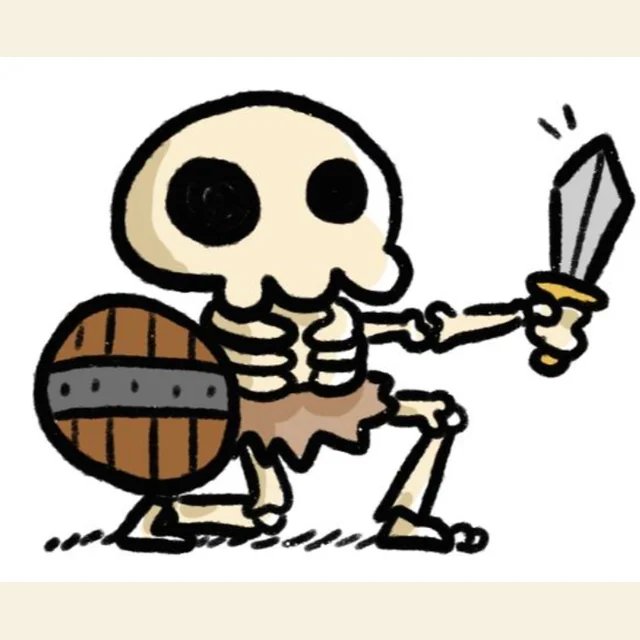
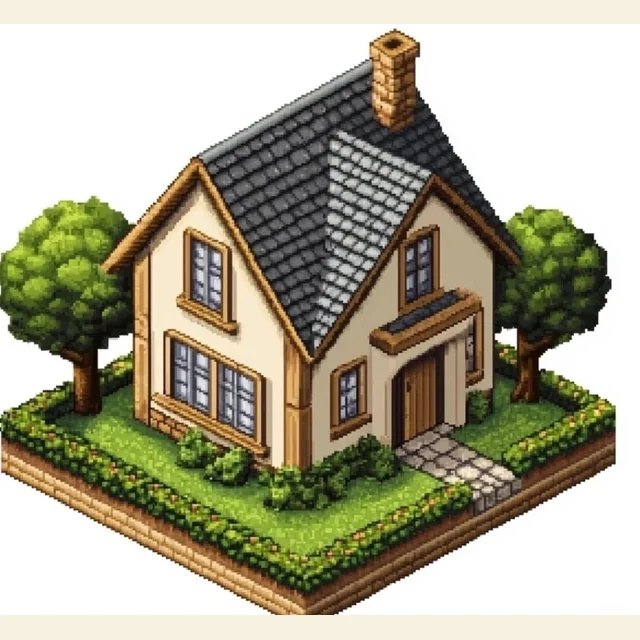
Every card is a real conversion made by this tool — no mockups. The photo fades into its pixel-art version; pick a size and palette, then make your own.
 photo
photoCorgi · 56px
 photo
photoPortrait · 56px
 photo
photoSkeleton · 48px
 photo
photoCottage · 56px
 photo
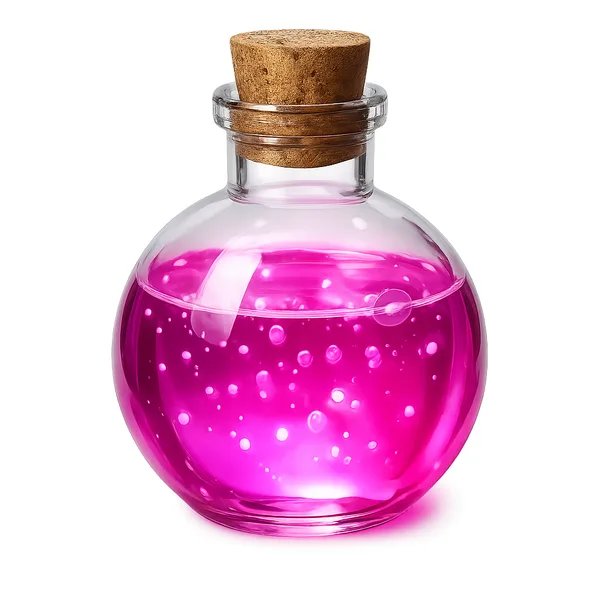
photoPotion · 48px
 photo
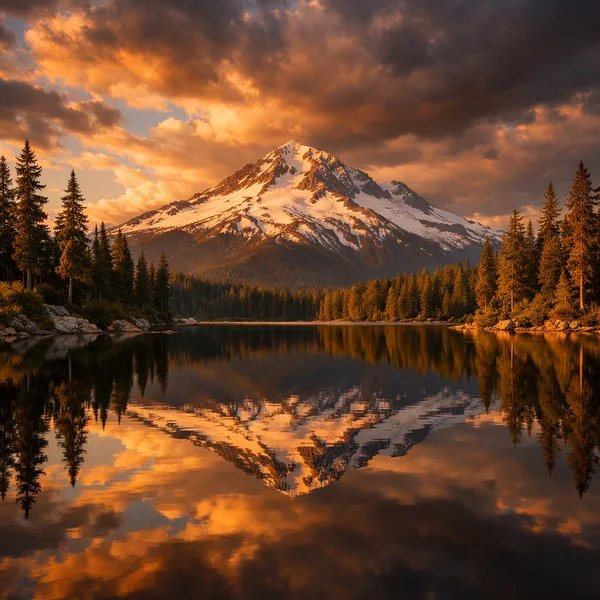
photoLake · 64px
 photo
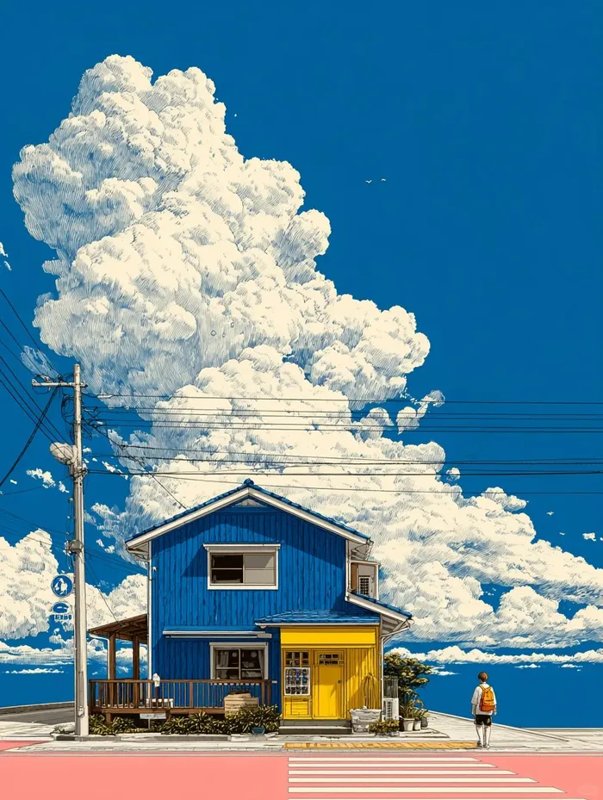
photoCloud House · 64px
 photo
photoPizza · 48px
 photo
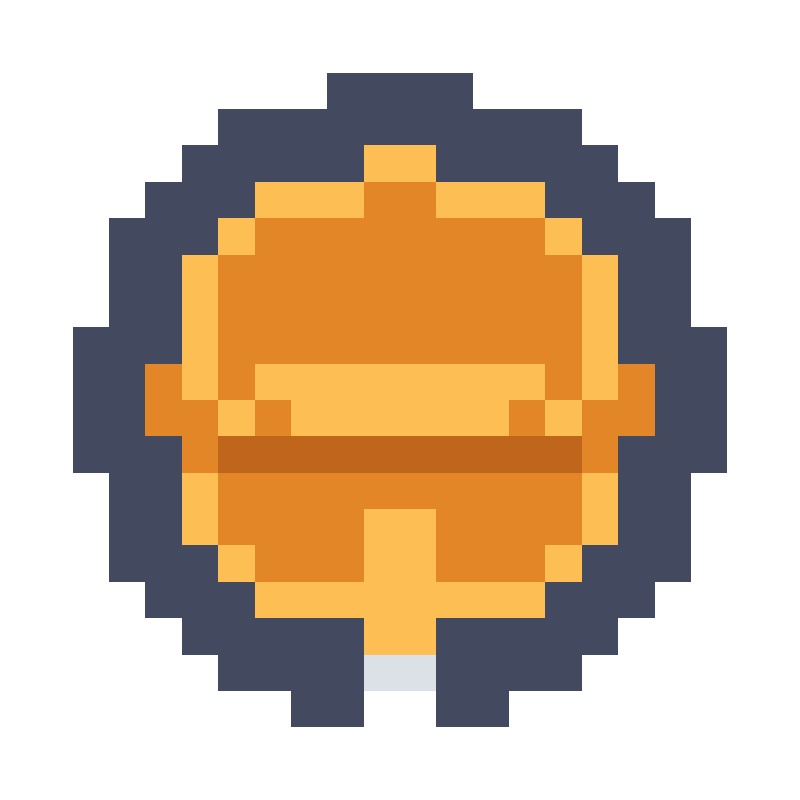
photoBurger · 56px
 photo
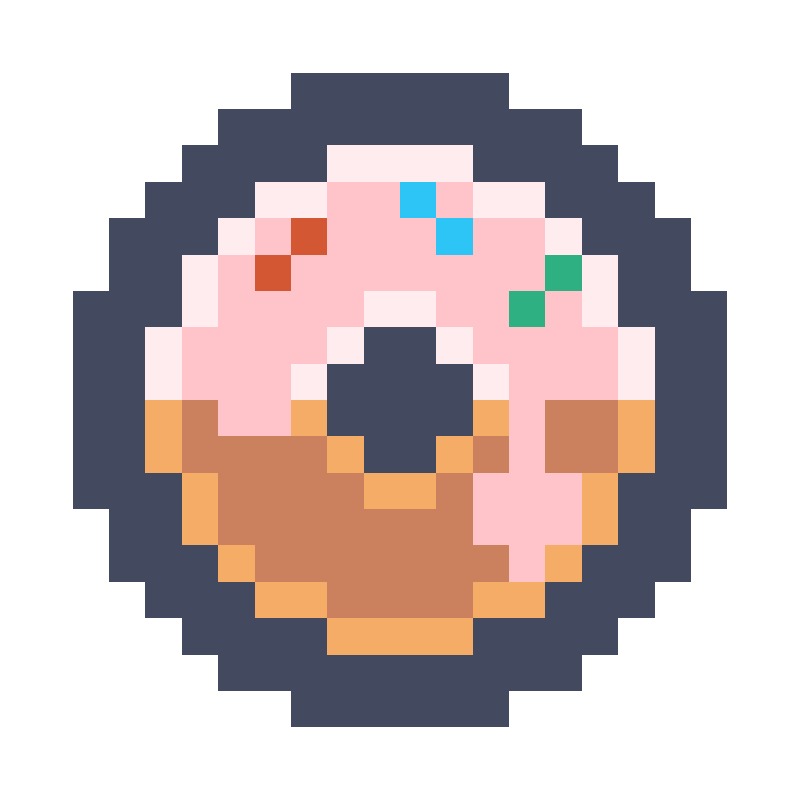
photoDonut · 48px
 photo
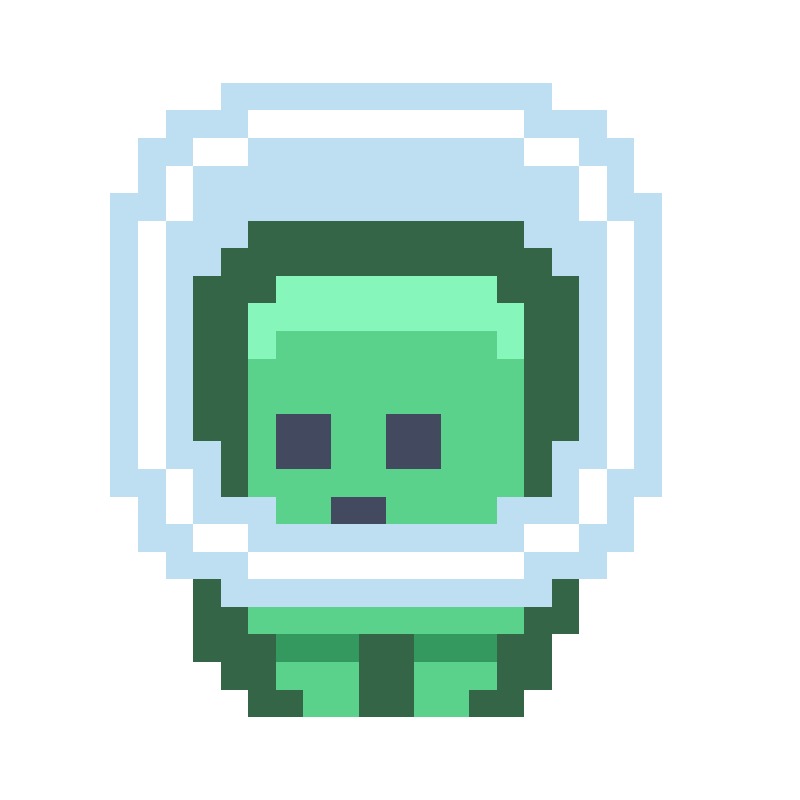
photoAlien · 40px
 photo
photoRobot · 48px
 photo
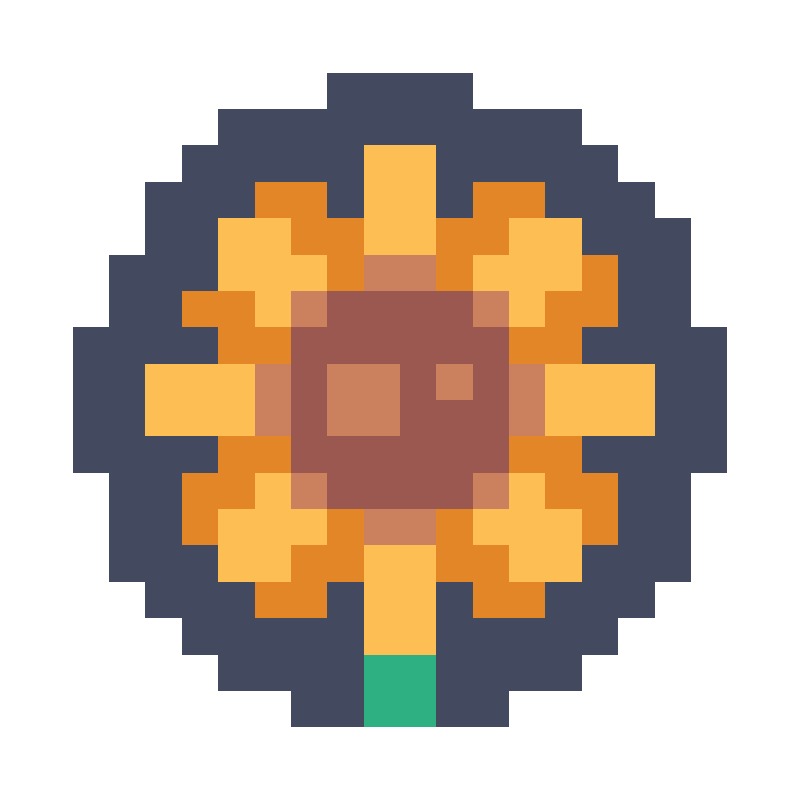
photoSunflower · 56px
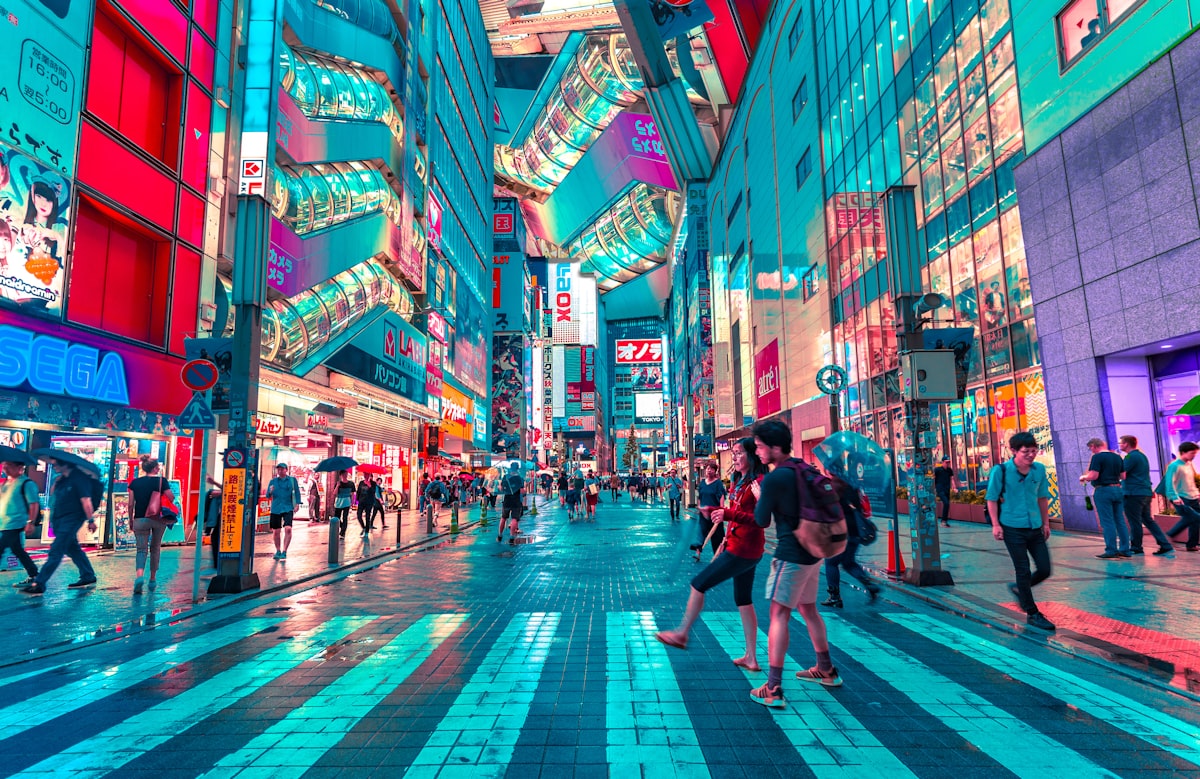 photo
photoTokyo · 96px
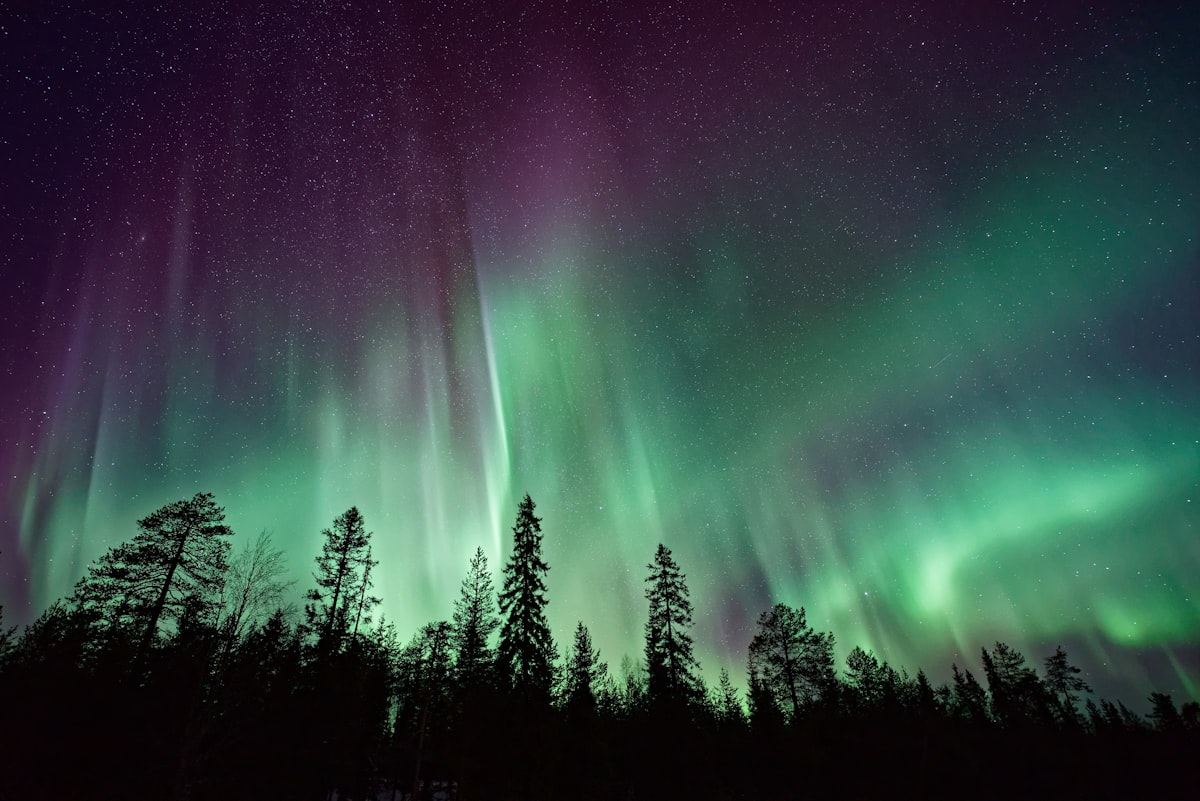 photo
photoAurora · 64px
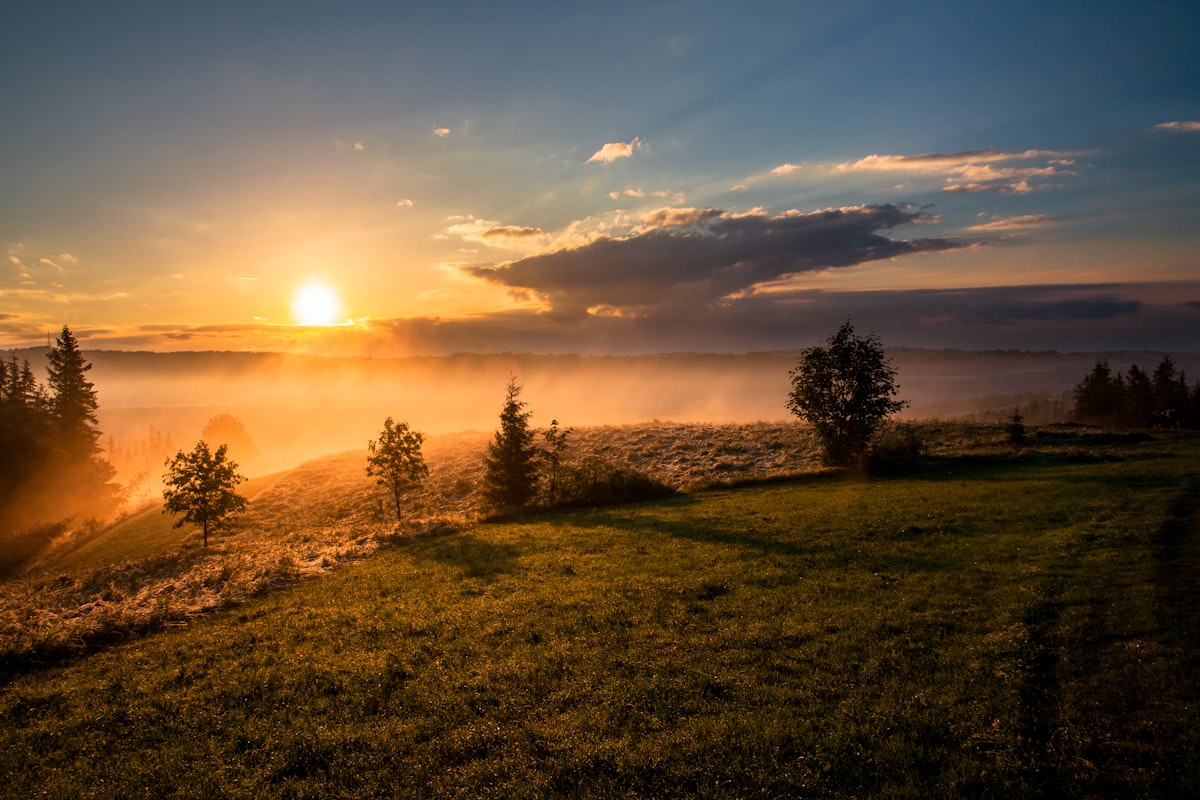 photo
photoSunset · 48px
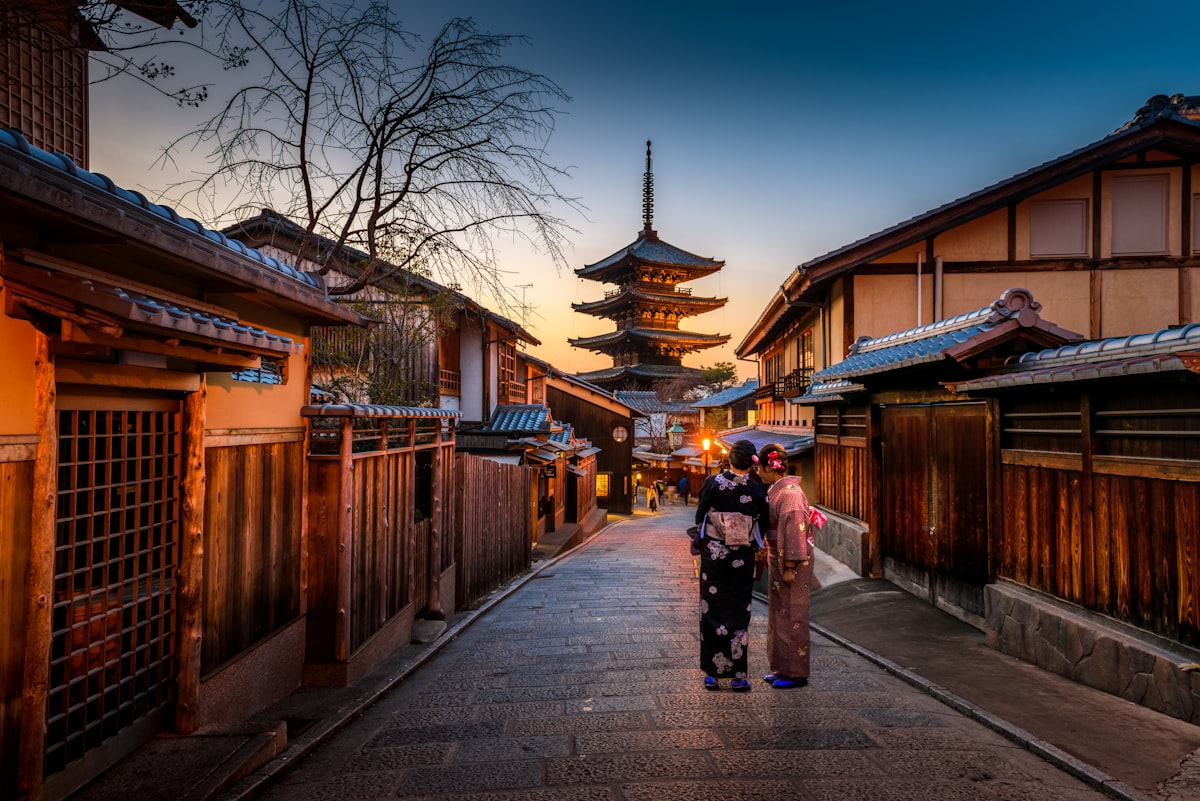 photo
photoKyoto · 80px
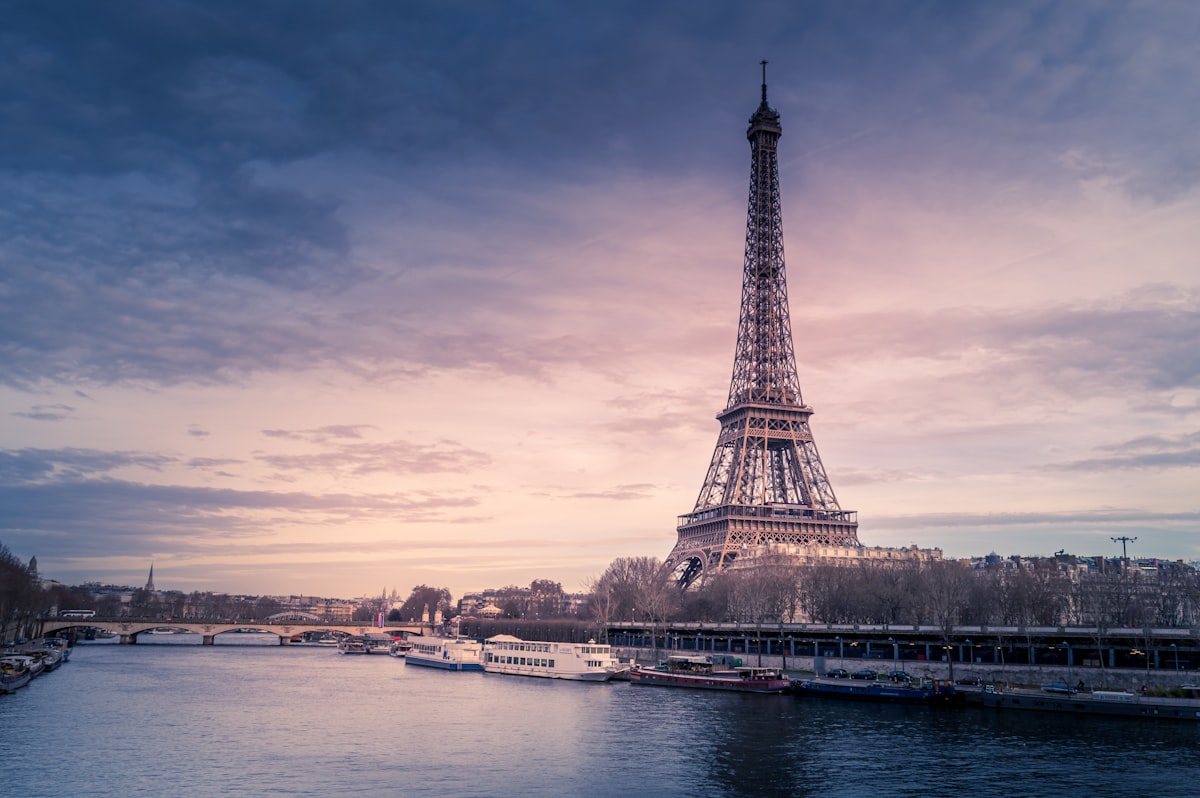 photo
photoParis · 72px
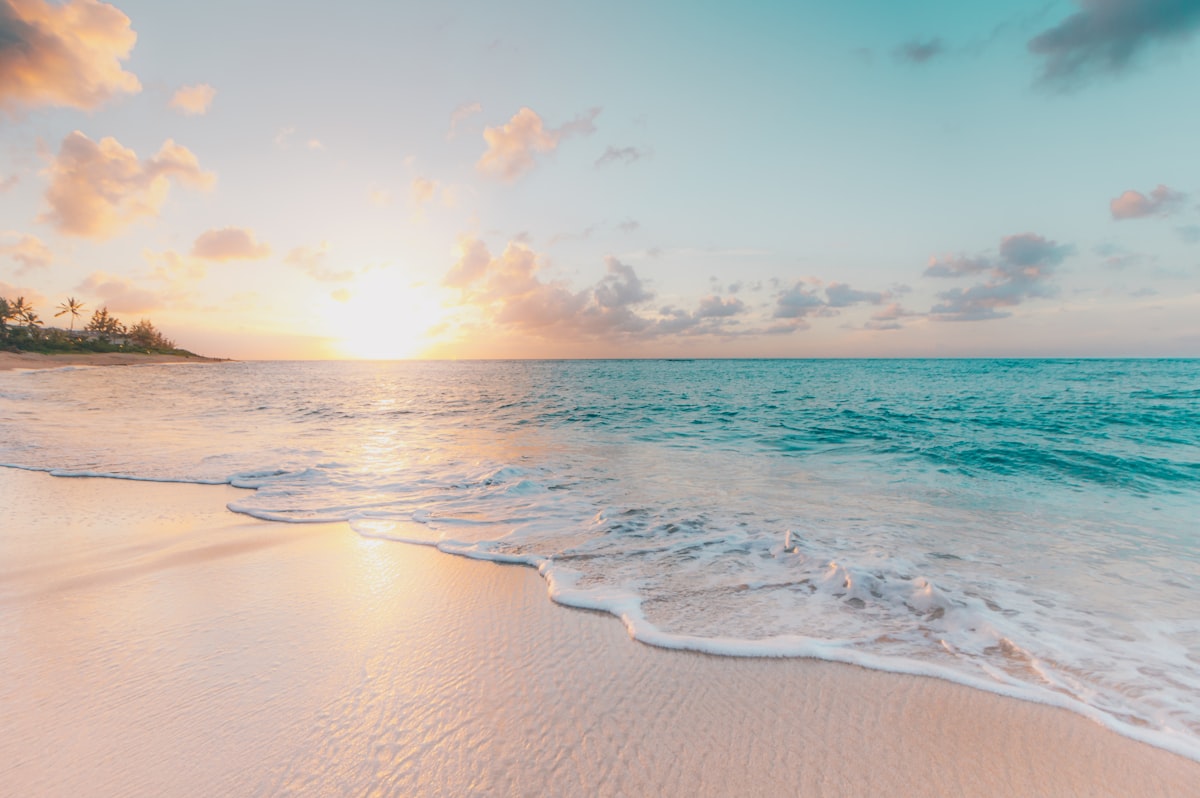 photo
photoBeach · 64px
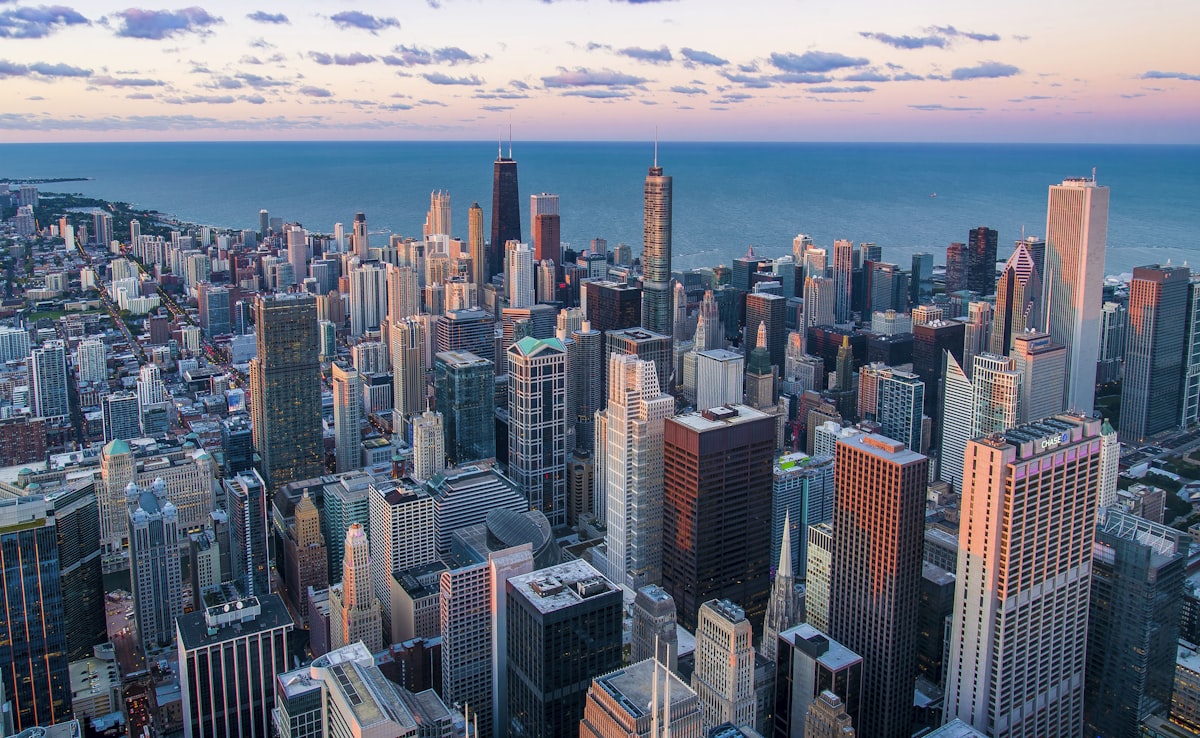 photo
photoChicago · 88px
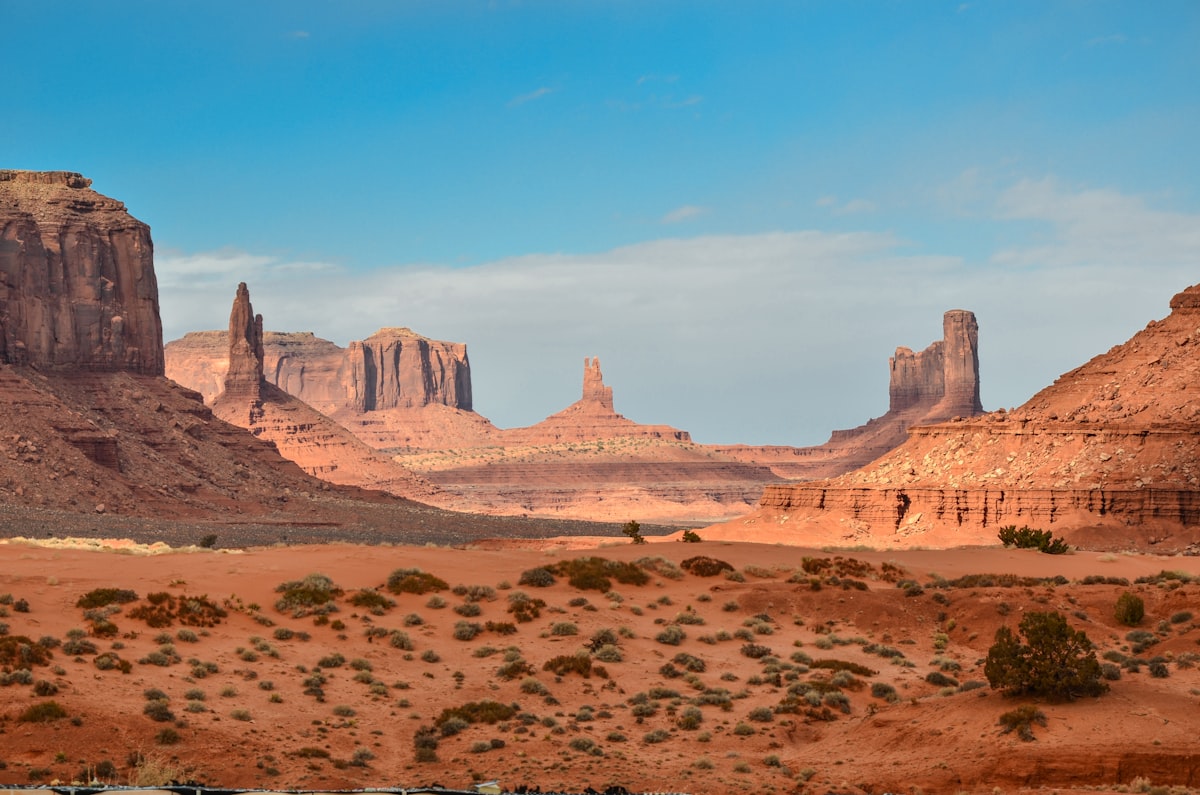 photo
photoDesert · 64px
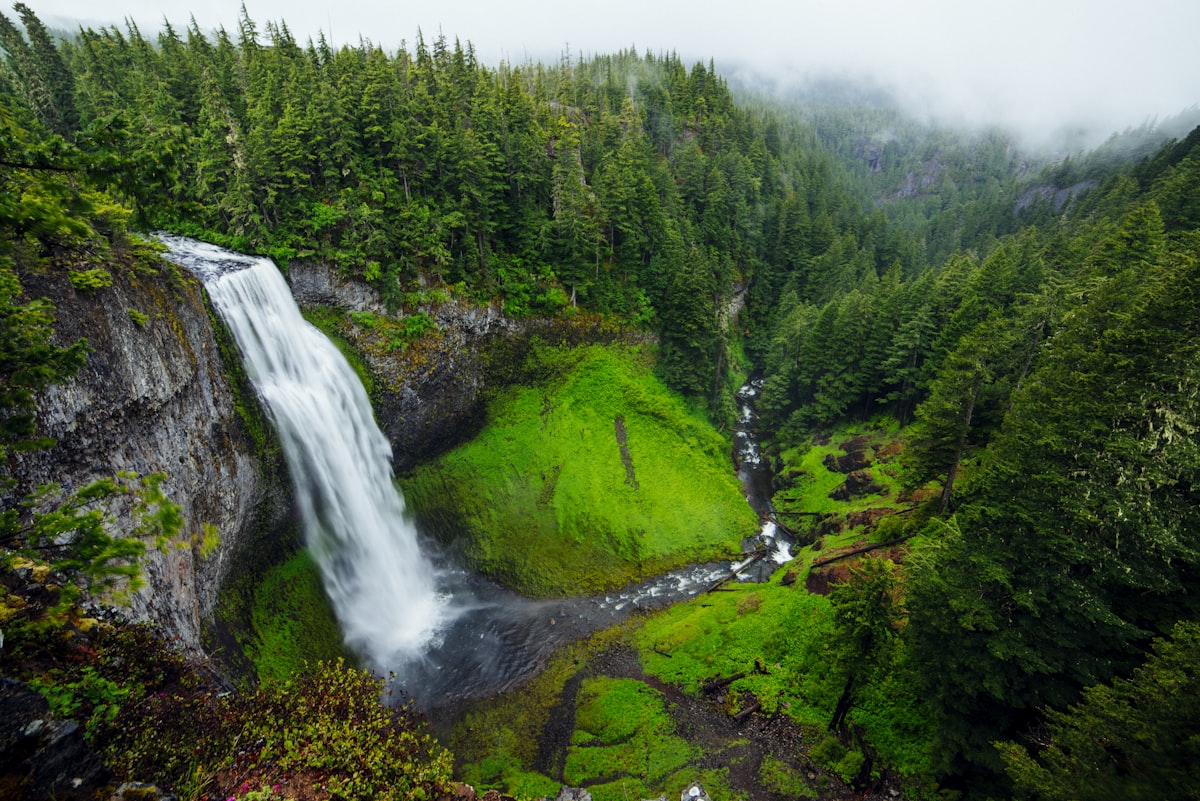 photo
photoWaterfall · 72px
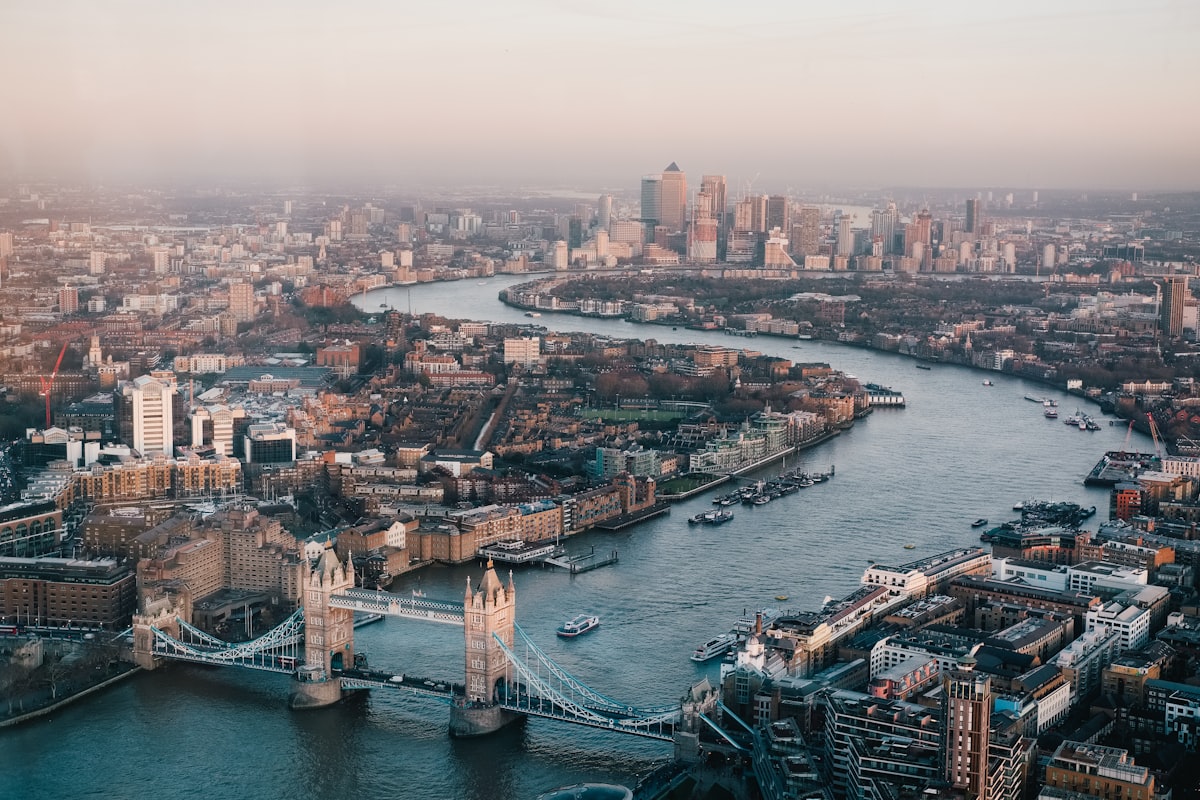 photo
photoLondon · 80px
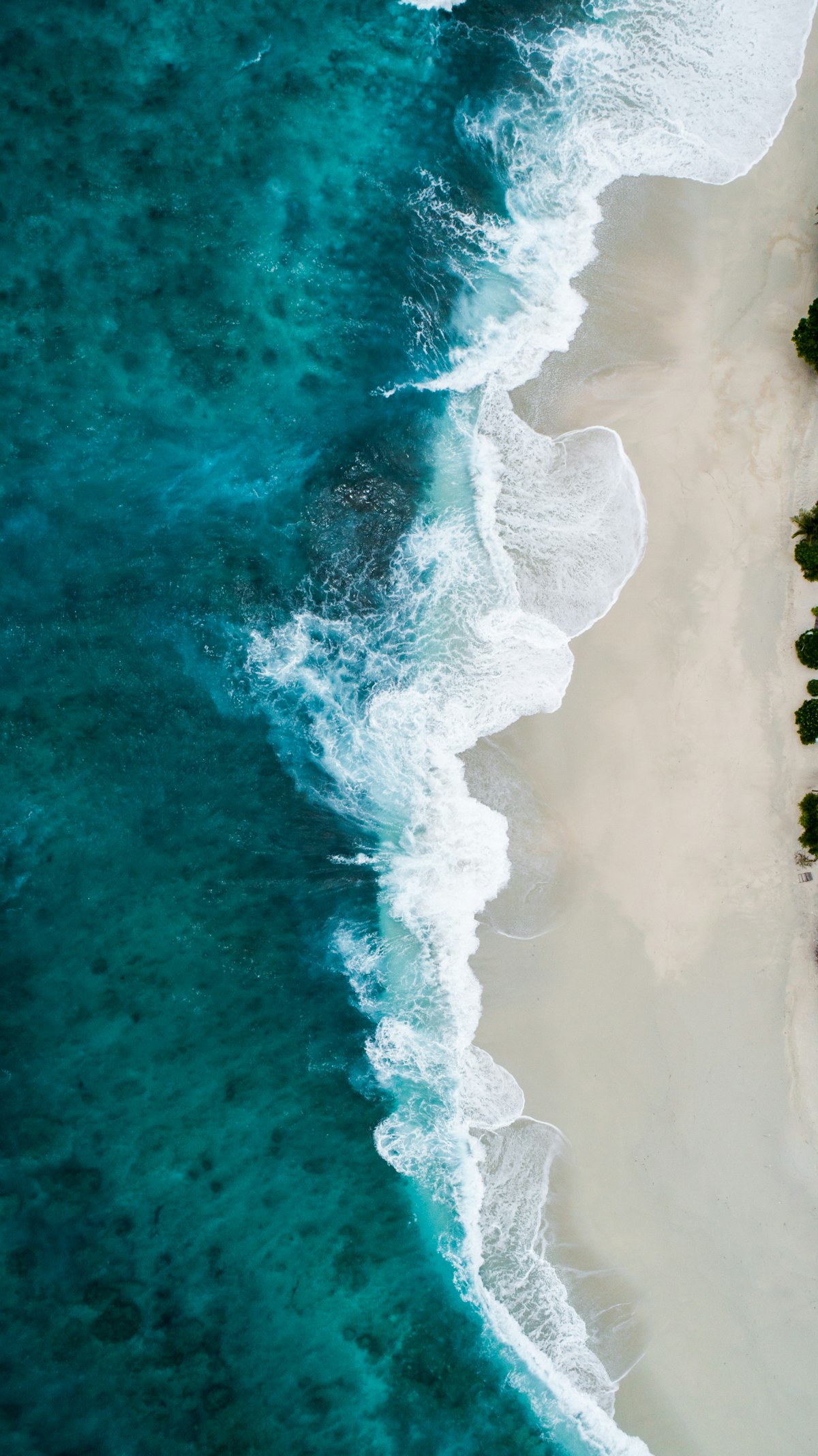 photo
photoWave · 64px
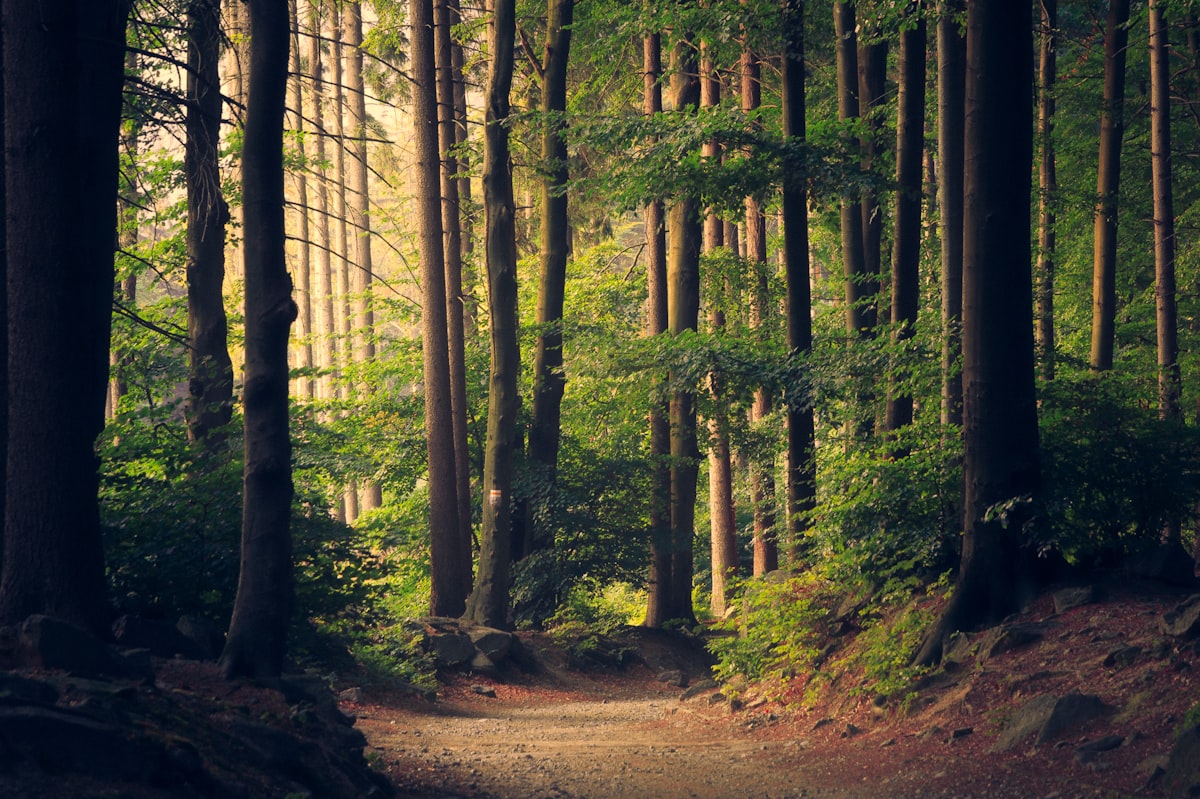 photo
photoForest · 60px
How to Convert an Image to Pixel Art
01
Upload Your Image
Drop in any JPEG, PNG, WebP, or GIF — or click to browse. The image-to-pixel conversion starts instantly and runs locally on your device; nothing is uploaded to a server.
02
Pick Pixel Size & Colors
Choose the pixel grid width (presets at 8, 16, 32, 64, and 120, or anything from 8 to 256), pick a palette — Default, Original, Grayscale, Pico-8, or Game Boy — and cap the color count from 2 to 64. Fine-tune brightness, contrast, and saturation before converting.
03
Download Your Pixel Art
Export a crisp PNG scaled up to 16x with nearest-neighbor rendering — pixel edges stay razor sharp for sprites, icons, avatars, and print. Convert as many images as you like, free.
Pixel Art Converter Features
Precise Pixel Sizes
Pick any pixel size from 8 to 256 — 8×8 chunky icons, 16×16 and 32×32 game sprites, 64×64 avatars, up to 256 for detailed portraits. Quick presets at 8, 16, 32, 64, and 120, or dial any width; height follows your image.
Retro Palettes
Five palette modes: Default (auto-quantized), Original (keep source colors), Grayscale (16-step), Pico-8 (16 colors), and Game Boy DMG (4 shades of green) — one click restyles any image into authentic retro art.
Color Count Control
Limit the palette from 2 to 64 colors (default 24). Fewer colors means a cleaner, more stylized pixel art look; more colors keeps photographic detail.
Floyd-Steinberg Dithering
Toggle dithering on or off. Classic error-diffusion blends colors with scattered pixels — perfect for gradients, skies, and that authentic retro feel in any pixelated image.
Background Removal
One-click background removal with adjustable tolerance (0–100), plus brightness, contrast, and saturation sliders (−100 to +100) in the image adjust panel — tune the photo before converting, no external editor needed.
Private & Free
No sign-up, no watermark, no upload. Decoding, quantization, and PNG export all happen locally — a free pixel art generator that keeps your images private.
What Is Pixel Art?
Pixel art is a digital art form where images are built on a visible grid of square pixels, each a flat block of a single color. It defined the look of 8-bit and 16-bit video games, and today it powers indie games, icons, avatars, NFT collections, and cross-stitch or fuse-bead crafts.
Converting a photo into pixel art is a two-step process. First the image is downscaled to a small grid — each grid cell becomes one visible pixel, which is what creates the chunky look. Then the colors are quantized: similar shades merge until only a handful remain, matching how classic consoles could only display a few colors at once.
Our converter does this with a box-filter downscale (no AI, fully deterministic), median-cut color quantization, optional Floyd-Steinberg dithering, and nearest-neighbor upscaling on export — the same pipeline game artists have used for decades, running entirely in your browser.
More Free Pixel & Bead Tools
Who Is This For?
Indie game developers
Sprites, portraits, and backgrounds for your game start as references. Pixelate any image to game-ready resolutions (8–256 px) in palettes like PICO-8 or Game Boy DMG — the authentic 4-shade green, not an Instagram filter.
Sprite & fan artists
Practice pixel art by studying how photos reduce. Upload, dial the resolution, watch what survives. It's a study tool as much as a converter.
Social media creators
Pixel-art profile pictures and thumbnails stand out in a feed. Convert once, export PNG at up to 8× — crisp edges, no compression mush.
Nostalgia fans
Turn childhood photos into Game Boy screenshots or PICO-8 scenes. The palettes are the real hardware palettes, so the result reads as retro, not as 'a filter'.
Designers
Moodboards, textures, and poster elements. The grayscale and limited-palette outputs plug straight into design systems that need constrained color.
Teachers of digital art
Show resolution, palette, and dithering as live sliders instead of slides. Students see cause and effect in real time on their own images.
Why This Pixel Art Converter
How this pixel-art converter stacks up against both dedicated tools and quick filter apps.
| Feature | This tool | Typical competitors |
|---|---|---|
| Authentic palettes | PICO-8, Game Boy DMG, grayscale — real hardware palettes | 'Pixel' filters that just blur and posterize |
| Resolution control | 8–256 px grid with live preview at every step | One or two fixed sizes |
| Dithering | Floyd–Steinberg error diffusion, toggleable | Usually absent |
| Export quality | Clean PNG up to 8× with pixel-perfect edges | JPEG artifacts on export |
| Price | Free, unlimited, no signup | Watermarks or credits |
| Privacy | Images never uploaded | Server processing |
Frequently Asked Questions
How do I convert an image to pixel art online?
Upload a JPEG, PNG, WebP, or GIF above, pick a pixel size preset (8, 16, 32, or 64), adjust colors and palettes to taste, and click Download PNG. Everything runs locally in your browser — no account needed.
What does pixel size mean and which value should I choose?
Pixel size is the width of the output grid in pixels. 8 or 16 works well for beads, sprites, and icons; 32 or 64 gives more detail and suits avatars and profile pictures. The height follows your image's aspect ratio automatically.
Can I limit how many colors are used?
Yes. With the Default palette, the Max Colors slider (2-64) controls how many colors the converter keeps. Fewer colors means a cleaner, more stylized result; more colors keeps photographic detail.
Which built-in palettes are supported?
Default (quantized from your image), Original (no color reduction), Grayscale, Pico-8 (16 colors), and Game Boy DMG (4 shades of green). Fixed palettes map every pixel to its nearest palette color.
Does it support transparent backgrounds and what format is exported?
Yes. Background removal detects a uniform background color and makes it transparent with an adjustable tolerance. Export is a PNG at 1x to 16x scale using nearest-neighbor upscaling, so pixel edges stay perfectly crisp.
Are my images uploaded to a server?
No. The entire conversion pipeline runs locally using Canvas. Your image is never uploaded, stored, or seen by anyone — it does not leave your device.
What pixel size should I use for sprites, avatars, and icons?
Game sprites typically use 16x16 or 32x32 grids, profile pictures look great at 32 or 48 pixels wide, and icons read best at 16-24. For fuse-bead crafts, match your pegboard: a 29x29 board is one 29-pixel-wide pattern.
What is dithering and when should I turn it on?
Dithering blends colors by scattering pixels in a pattern, simulating shades that are not in the palette. Turn it on for photos with smooth gradients like skies and sunsets; turn it off for flat, clean sprites where noise makes sorting and crafting harder.
Can I use the generated pixel art commercially?
The tool itself claims no rights over your output — what you create from your own images is yours. Just make sure the source image you upload is one you have the rights to use.
Does converting reduce image quality?
Pixel art is intentionally lower resolution than the photo — that is the aesthetic. The export compensates with nearest-neighbor upscaling up to 16x, so every blocky pixel edge stays perfectly crisp instead of blurry.
Is there a free image pixelator that runs in the browser?
Yes — this tool is exactly that. It pixelates any JPEG, PNG, WebP, or GIF locally on your device, for free, with no account and no upload. Adjust the grid size and color count until the pixel art looks right, then export.
Can I use this as a pixel art generator from an image?
That is what it does: drop in any image and it generates pixel art automatically — the grid resolution, palette, and color count are yours to tune. It is a deterministic converter, not an AI that invents new art, so the output always matches your input.
How do I pixelate an image without Photoshop?
Skip Photoshop. Upload the image here, pick a pixel size, and download the result — no layers, filters, or subscriptions. Because the conversion runs locally, it is also faster than most online editors and works on any device.
What settings can I adjust when converting an image?
Six controls: pixel size (presets 8, 16, 32, 64, 120 — any width up to 256), palette (Default, Original, Grayscale, Pico-8, Game Boy), max color count (2–64, default 24), dithering on/off, background removal with 0–100 tolerance, and image adjustment sliders for brightness, contrast, and saturation (−100 to +100). Every change re-renders the preview instantly.